Managing multiple brands with Studio
Add up to three brands under one Studio plan, switch between them, and understand primary, secondary, and locked brands.
Written By Nick
Last updated About 13 hours ago
Studio lets you run up to three separate brands under one subscription and one login. Each brand is its own workspace with its own albums, posts, brand voice, platform connections, calendar, and team, so content for one business never mixes with another.
Key terms
Brand: one business workspace in Social Valet. (The app sometimes calls this an account.)
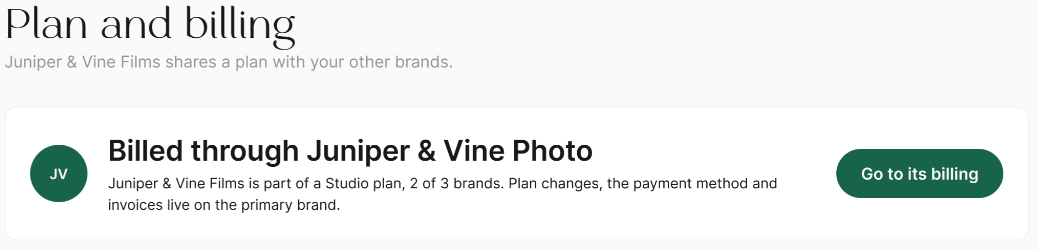
Primary brand: the brand that holds your Studio subscription. Billing is managed here.
Secondary brands: the other brands covered by your Studio plan. Their billing settings show "Billed through" your primary brand.
Locked brand: a brand that's paused after a downgrade from Studio. Everything in it is kept, and it unlocks when you upgrade back.
Adding another business
You can start from Settings → Brands or from Add an account in the account switcher. Either one opens a choice screen with two options:
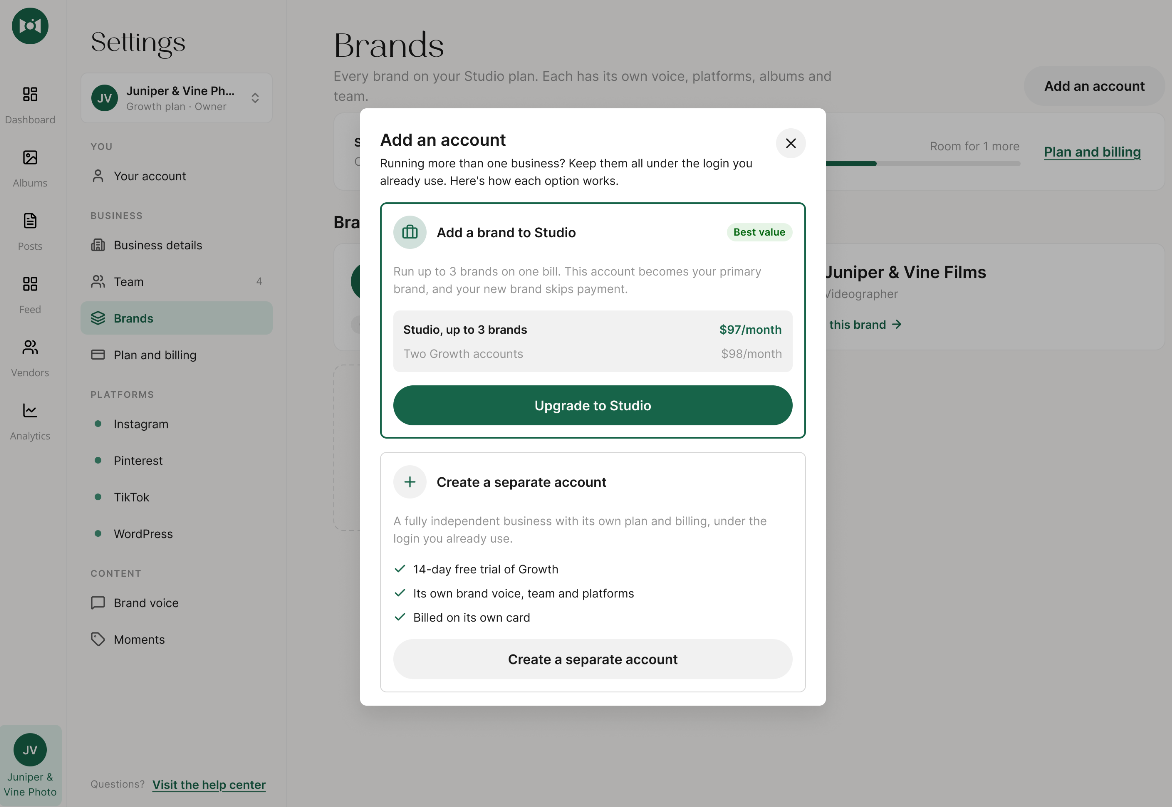
Either way, you go through a shorter version of onboarding for the new business. You're already signed in, so there's no account creation or email verification. Brands added to Studio also skip the plan step. If you leave partway through, the new business stays in your switcher so you can finish setup later.
A few things to know:
Only Owners can add a brand to Studio. If you're not an Owner of the current account, you'll only see Create a separate account.
Once you have 3 brands, the Studio option shows that you've reached the limit.
Switching between brands
The account switcher appears in the main navigation once you belong to two or more accounts. Those can be Studio brands, separate accounts, or accounts someone has invited you to.
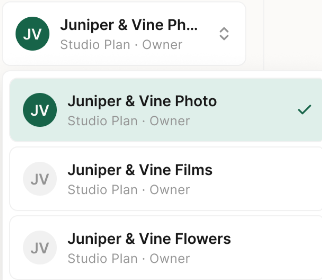
Your current brand is pinned at the top, and your primary brand is marked.
Search by business name to find a brand quickly.
Click a brand to switch to it. The page reloads into that brand.
Locked brands appear grayed out with a lock icon.
When you log in, you land in the brand you used last. If you have Social Valet open in more than one tab and switch brands in one of them, the other tabs reload into the brand you switched to, so you never work in the wrong brand by accident.
The Brands section in Settings
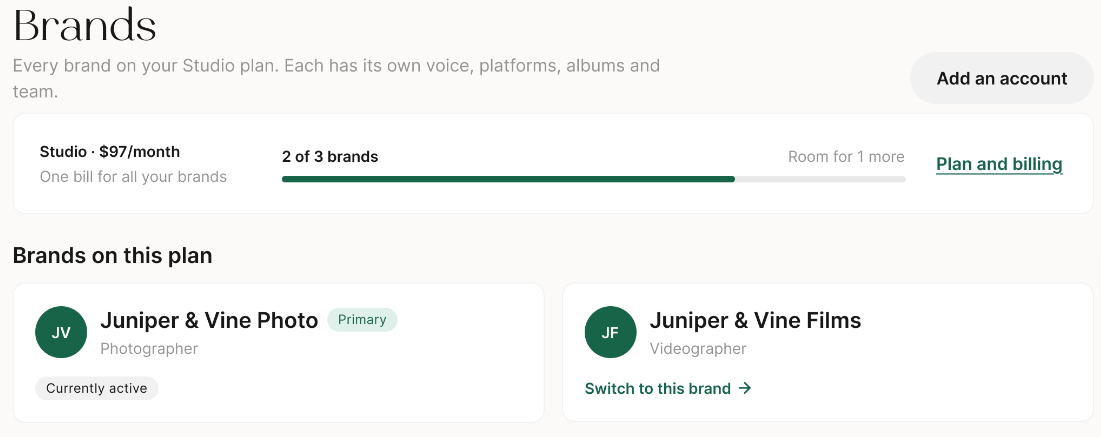
Go to Settings → Brands. On Studio, you'll see every brand on your plan, with your primary brand marked and how many you're using (for example, "2 of 3 brands"). On Growth or Essentials, you'll see your current brand and the option to upgrade to Studio.
Emails for each brand
Every email from Social Valet starts its subject line with the brand's name, so you always know which business it's about. For example: "Juniper & Vine Films: 5 posts are ready to approve." Links in the email open in that brand. Billing emails use your primary brand's name.
Team members across brands
Each brand has its own team. You can invite someone to one brand without giving them access to the others. If they already have a Social Valet login, they use that same login, and the brand shows up in their switcher. The person who holds the Studio subscription is the Owner of every brand on the plan. See Inviting team members and managing roles.
Billing on Studio
One subscription covers every brand, and it lives on your primary brand. Only the subscription holder can change the plan, and they do it from the primary brand's billing settings. If a payment fails and the subscription ends up canceled, every brand on the plan is affected. See Changing your plan.
Locked brands
When you downgrade from Studio, you pick one brand to keep active, and the others lock. While a brand is locked:
No one can open it, including the Owner, team members, and Social Valet support.
Nothing is generated, scheduled, or published, and its scheduled posts are paused.
No emails go out for it.
Other vendors can't send shared albums to it.
Everything in it is kept: albums, posts, brand voice, vendors, and connections.
If you click a locked brand, you'll see a message that it needs Studio. The subscription holder also gets a button that goes to billing. If all of a team member's accounts are locked, they'll see a message at login that no accounts are available.
To unlock, upgrade back to Studio, and every locked brand unlocks immediately. Platform connections can expire while a brand is locked, so check Settings → Platform Management in each one and reconnect anything that needs it.
Deleting a brand
An Owner can delete a secondary brand, which frees up a brand slot. Your primary brand can't be deleted while secondary brands exist, so delete those first. Team members of a deleted brand keep their Social Valet login and their access to any other accounts. See Canceling your subscription or closing your account.
If something goes wrong
You don't see the account switcher. It only appears once you belong to two or more accounts. Use Settings → Brands to add your first additional business.
You can't add a brand to Studio. You may have reached the 3-brand limit (which includes your primary brand), or you may not be an Owner of the current account.
A brand shows a lock icon. It was locked after a downgrade from Studio. Upgrade back to Studio to unlock it.
Login says no accounts are available. Every account you belong to is locked. Ask the subscription holder to upgrade, or contact support.
Posts aren't publishing in a brand you just unlocked. A connection may have expired while the brand was locked. Reconnect it in Platform Management.
Next steps
Was this helpful?
Still need help? Ask the team