Cropping photos for Instagram and Pinterest
How to preview, adjust, and manage Instagram and Pinterest crops so your photos publish with the framing you want.
Written By Nick
Last updated 20 days ago
Instagram and Pinterest use different photo shapes. A frame that looks great on one can chop off exactly the wrong thing on the other. Social Valet gives you crop views to preview each platform's framing at a glance, and a crop editor to adjust when the default is off.
Where to preview crops
You can switch between Original, Instagram, and Pinterest crop views from two places:
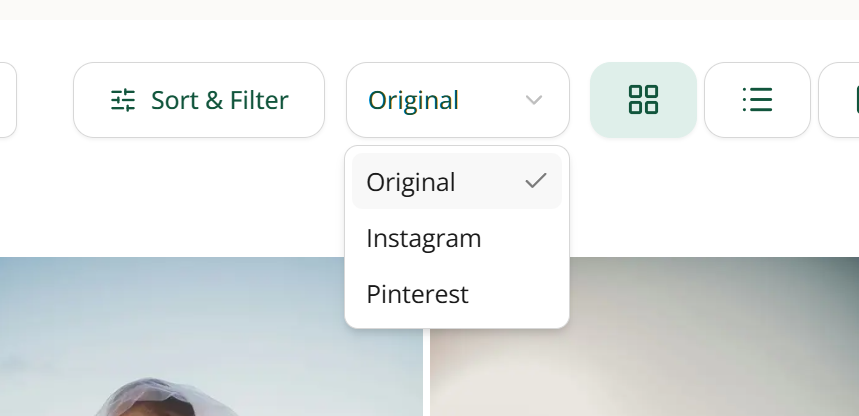
Album page. Above the media grid, the crop view toggle applies to the whole grid at once. Flip through the three views to spot any photo where the platform framing is cutting off something important.
Photo preview. Inside the lightbox for any single photo, the same three views are available so you can inspect a specific photo more closely.
The Original view is your uncropped photo. Instagram and Pinterest apply the current saved crop for each platform (a smart default if you haven't adjusted it, or your saved crop if you have).
Opening the crop editor
Two ways to open the crop editor for any photo:
From the post preview. Inside an Instagram post or Pinterest pin editor, open the crop editor from the photo tile. This is the most common path, since you're already looking at the post that shows the framing issue.
From the photo edit modal. Inside the lightbox for a photo, open the crop editor from photo tools. Useful when you notice an issue while reviewing the album and want to fix it at the source.
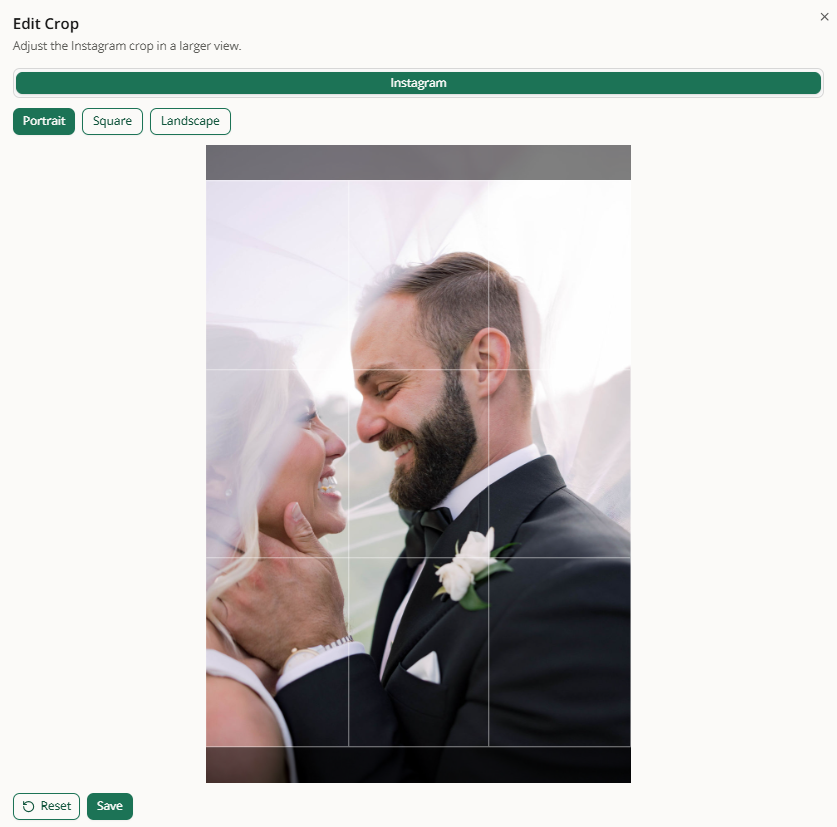
Either path opens the same editor. Choose the platform tab (Instagram or Pinterest) and drag the crop frame to reframe the photo. Save when you're happy with it.
Choosing a crop shape
Crop shapes are labeled by what they look like, not by numbers:
Portrait. Taller than it is wide.
Square. Equal width and height.
Landscape. Wider than it is tall.
On Instagram, the shapes you can pick depend on the photo itself:
Vertical photos can use Portrait or Square.
Horizontal photos use Landscape.

This keeps Instagram from squeezing a wide shot into a tall frame (or the other way around), which is where most awkward crops came from. Pinterest pins use the Portrait shape.
Smart default crops
When Social Valet curates photos for Instagram posts and Pinterest pins, it also picks a starting crop for each platform, aimed at keeping the important content in frame. On Instagram, that starting crop always matches the photo's orientation. That means the crops you see on approval are already reasonable most of the time, not centered by default.
You can still override any of these crops before you publish. Smart defaults are a starting point, not a lock.
How saved crops propagate
Saving a crop does two things:
Updates unpublished posts using this photo. Any post that hasn't published yet, whether it's an Instagram post, a Pinterest pin, in Needs Approval, Approved, or Scheduled, picks up the new crop automatically. You don't need to reopen each post.
Applies at publish time. When the post publishes, Social Valet uses your saved crop for that platform. The framing you approved is the framing that goes out.
If a photo has already been published, that specific published post is unchanged (Instagram and Pinterest don't allow editing published images). Any future posts using the same photo will use your new crop.
If something goes wrong
The crop editor won't open. Refresh the page and try again. If it still won't open, check that the photo hasn't been removed from the source album.
The shape you want isn't offered on Instagram. Instagram shapes follow the photo's orientation. A horizontal photo only gets Landscape. If you want a vertical crop, use a vertical photo.
A crop I saved doesn't seem to have taken effect. Confirm you're looking at the correct platform view. A saved Instagram crop only shows up in the Instagram view, not in Original or Pinterest.
The published post looks different from what I approved. Instagram and Pinterest apply their own small adjustments on their end (compression, minor scaling). If the framing is dramatically different, open the post editor and check whether your crop actually saved, then reach out to support if the mismatch persists.
Smart default crop is consistently wrong for one type of photo. You can override each one manually. If you're seeing a pattern across many photos, let us know so we can improve the smart crop model.
Next steps
Was this helpful?
Still need help? Ask the team