Reviewing and editing Instagram posts
Written By Nick
Last updated About 1 month ago
The Instagram post editor is where you review the captions, photos, videos, and tagging Social Valet generated for you, and adjust anything that needs your touch before the post goes live.
Where to find Instagram posts to review
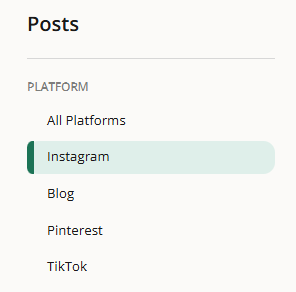
You can open the editor from any of these places:
Posts page. Filter by Instagram and by Needs Approval status.
Dashboard. Recent posts and alerts.
Calendar view. Click any Instagram post on the calendar.
Album page. Alerts and the Needs Approval count in the sidebar.
The editor at a glance
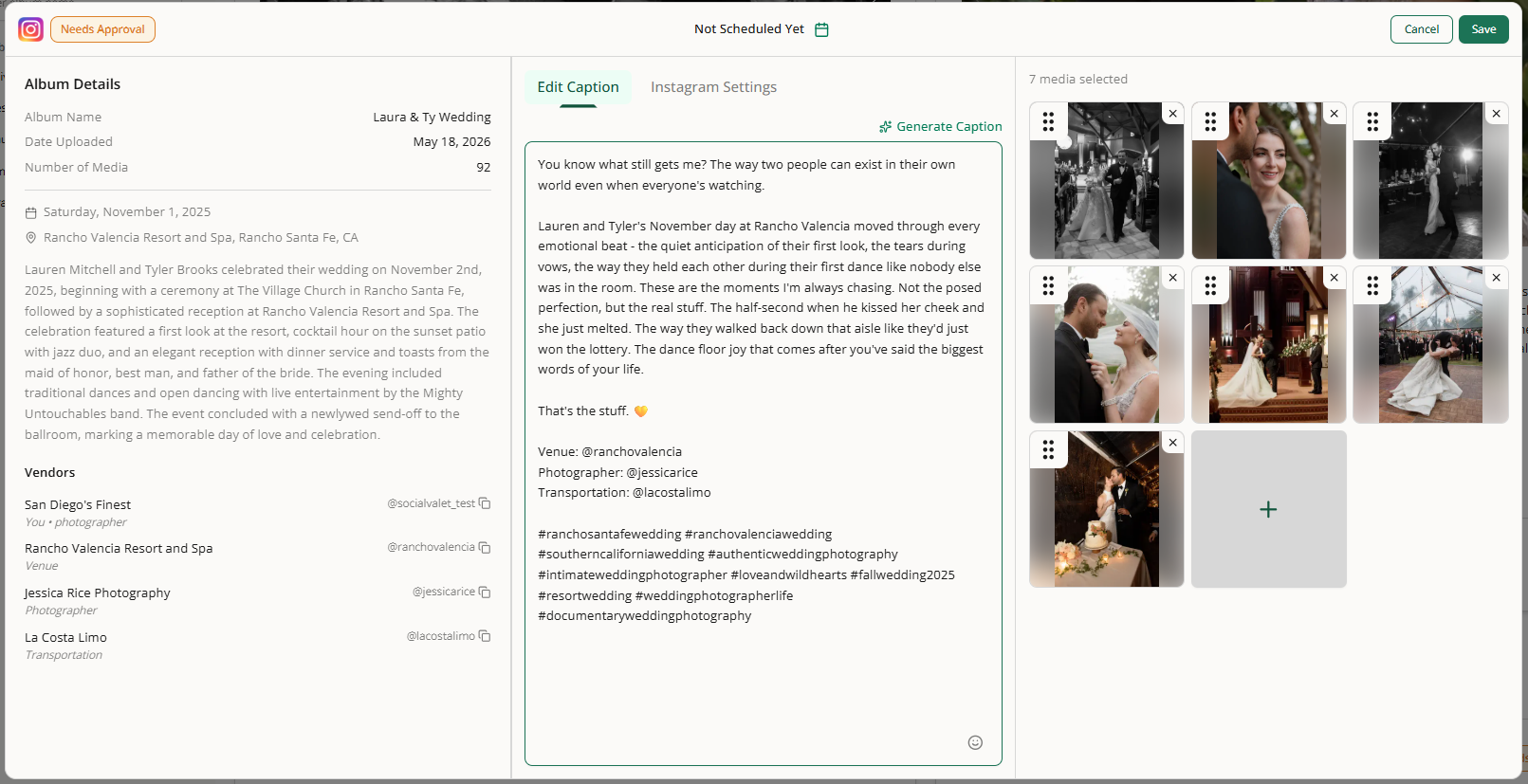
The editor opens as a full screen view with three columns:
Left. Album Details, including name, date uploaded, media count, event date and venue, description, vendors, and subjects. Read only here for context.
Center. Two tabs: Edit Caption and Instagram Settings.
Right. Selected photos or video for the post, with drag handles to reorder and a "+" tile to add more.
The top bar shows the post status (Needs Approval, Approved, Scheduled, etc.), the scheduled date or "Not Scheduled Yet," and four buttons: Cancel, Reject, Approve Post, and Save.
Post types
Instagram posts in Social Valet fall into three shapes based on the media you've selected:
Single image post. One photo.
Carousel. Two to 20 photos. The cap was previously 10 and is now 20, so longer carousels are supported.
Standalone video post. One video. Video posts have captions written specifically for video content rather than reused photo post copy.
Removing all photos down to a single item switches the post to a single image or single video type automatically.
Editing the caption

Click into the Edit Caption field to make changes. Hashtags live inside the caption itself, no separate field. The full caption (text plus hashtags) is capped at 2,200 characters, the Instagram limit.
If you want help writing or rewriting the caption, click Generate Caption inside the caption area. Social Valet will draft a new caption based on the album details, selected photos or video, and your brand voice. For video posts, the generated caption is tuned to the video specifically, not just adapted from a photo caption. You can edit the result freely. It won't overwrite your work automatically, just give you a starting point. This works for both auto generated posts you want to rewrite from scratch and manual posts where you want AI assistance.
Managing photos and videos
The right column shows the media selected for this post.
For photo carousels, drag a tile to a new position. The first tile is the lead image. To remove a photo, click the X on its tile (this appears right on the first screen for faster editing, no menu hunting needed). To add a photo, click the "+" tile. This opens a picker scoped to the source album. Select up to 20 total, drag to set order, and click Confirm.
To adjust how a photo is cropped for Instagram, open the crop editor from the photo tile in this post. You can preview the current Instagram framing and reframe if the default is off. Any crop you save here also applies to other unpublished posts using the same photo. See Cropping photos for Instagram and Pinterest for the full walkthrough.
For video posts, the video tile shows a preview thumbnail with a play indicator. Click it to preview the video inline before you approve. To swap the video, remove it and add a different one from the album picker.
If you remove media down to one item, the post type updates automatically.
Instagram Settings
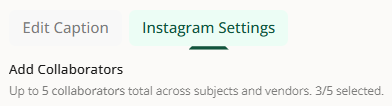
The Instagram Settings tab covers tagging. Social Valet pre populates these based on the album's vendors and subjects, but you can review and adjust:
Add Collaborators. Up to 5 collaborators across vendors and subjects. Collaborators are invited to co author the post on Instagram.
Tag Vendors. Vendor accounts tagged in the post.
Tag Subjects. Subject accounts tagged in the post.
Tag Vendors and Tag Subjects share a combined cap of 20 tagged accounts.
Scheduling
If the post hasn't been scheduled yet, the top bar shows Not Scheduled Yet. Click the calendar icon to set a date and time manually. If you don't, Social Valet auto schedules the post when you approve it.
Save vs. Approve Post
These are different actions:
Save. Persists your edits. The post stays in Needs Approval and won't publish.
Approve Post. Moves the post to Approved status and queues it for publishing at the scheduled time (auto scheduling kicks in if no time is set).
Reject. Moves the post out of the queue. See Approving, rejecting, or rescheduling posts.
Approve Post also saves any pending edits, so you don't need to click Save first.
If you cancel without saving
Clicking Cancel with unsaved edits opens a confirmation dialog before discarding. Closing the editor any other way works the same. Your changes won't save unless you click Save or Approve Post.
If something goes wrong
Caption is too long. Trim text or reduce hashtags until you're under 2,200 characters.
A photo won't load. Refresh the page. If it still won't load, the photo may have been removed from the source album. Re add a different one.
A video won't play in preview. Transcoding may still be in progress on a recently uploaded video. Give it a few minutes and refresh.
Save fails. Check your connection and try again. If it keeps failing, copy your caption text somewhere safe before refreshing.
Tag or collaborator handle isn't accepted. The Instagram handle on the vendor or subject record may be wrong. Update it on the album, then return to the editor.