Creating and editing Pinterest pins manually
How to create Pinterest pins on demand, edit auto-generated pins before publishing, and adjust title, description, board, or destination link.
Written By Nick
Last updated About 1 month ago
Social Valet auto generates most Pinterest pins from your album content, but you can also create pins manually or edit any pin before it goes live.
Two ways to create a pin manually
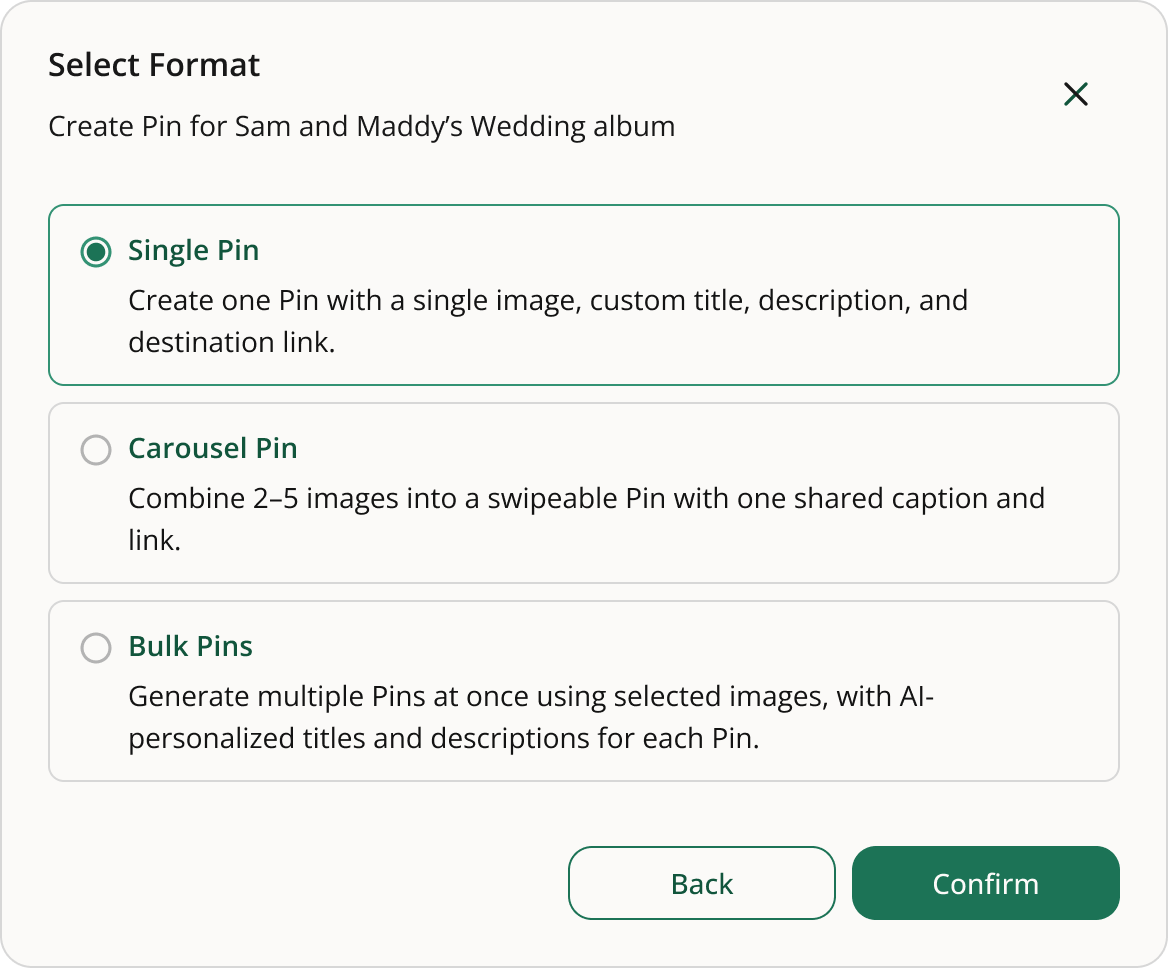
From the New Post flow
Click + New Post anywhere it appears (dashboard, Posts page, calendar).
Choose Pinterest pin as the post type.
Pick a source album and an image (or video, for video pins).
Write or auto generate a title and description.
Choose a destination board.
Set a destination URL.
Save as draft, approve, or schedule directly.
From an album's three dot menu
Open the album you want to pin from.
Click the three dot menu at the top right of the album page.
Choose Generate Pinterest pin.
Social Valet drafts a pin using the album details and your Pinterest brand voice.
Review, edit, and approve or schedule.
The three dot approach is useful when you want a fresh pin from an album that's already been publishing for a while, or when you want more Pinterest coverage on a specific album.
The pin preview and edit modal
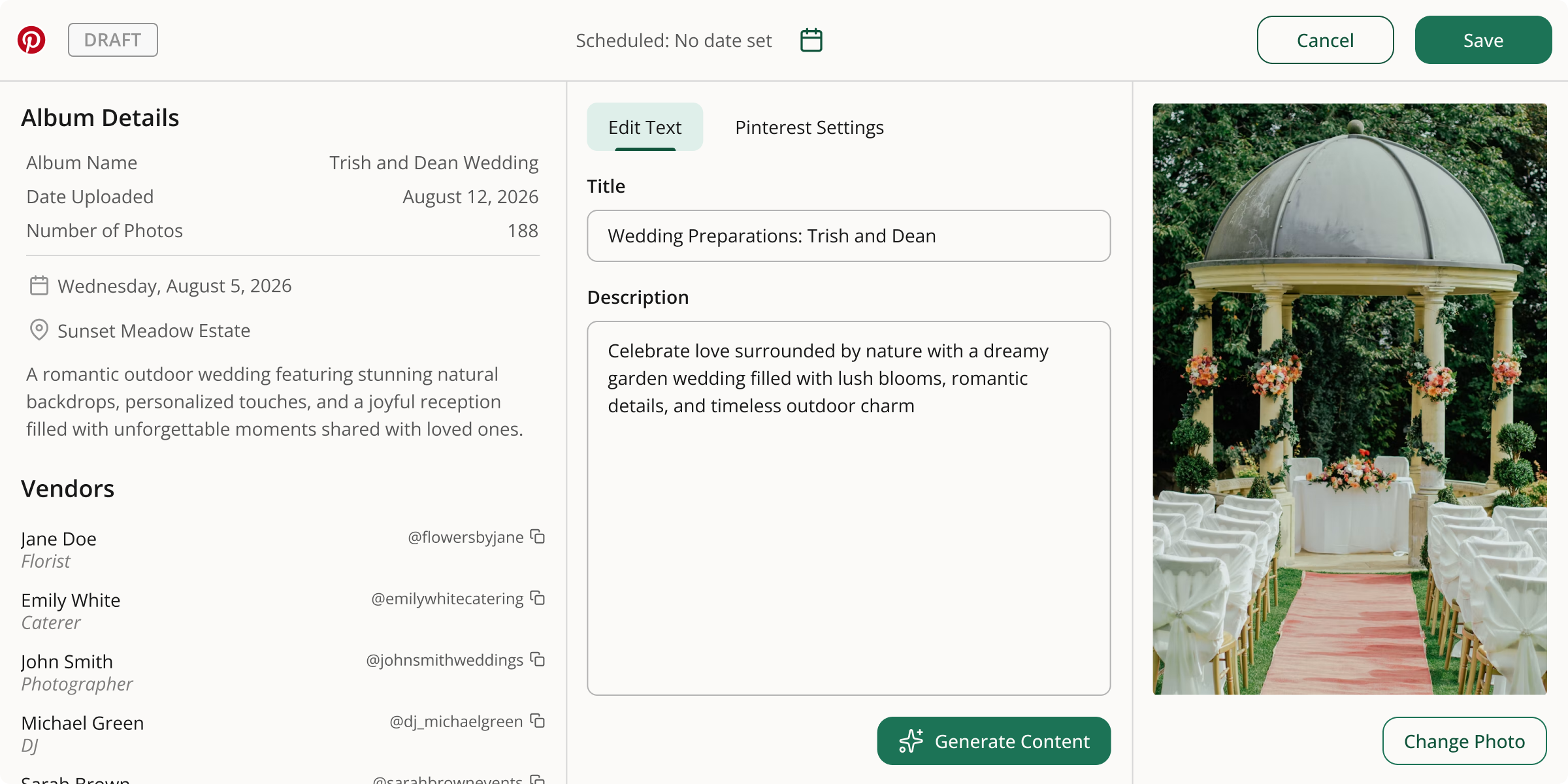
When you open any pin, you'll see a preview that mirrors how the pin will appear on Pinterest, plus editable fields for:
Image. Swap the image if the default doesn't feel right.
Title. Kept concise for Pinterest's display.
Description. Longer than the title, includes hashtags and keywords.
Board. Pick from your Pinterest boards. Defaults to Social Valet's auto assignment.
Destination link. Where clicks on the pin should land on your website.
Click Generate on the title or description to have Social Valet redraft that field in your Pinterest brand voice.
To adjust how the pin image is cropped for Pinterest, open the crop editor from the pin preview. Pinterest uses its own vertical framing, so a photo that looks great on Instagram may need reframing here. Any crop you save applies to unpublished pins using the same photo and to future publishes. See Cropping photos for Instagram and Pinterest for the full walkthrough.
Approving and scheduling
Manual pins move through the same lifecycle as auto generated ones: Needs Approval → Approved → Scheduled → Published. See Approving, rejecting, or rescheduling posts for the full flow.
If something goes wrong
The Generate button doesn't return anything. Check that Pinterest is connected and that you've trained a Pinterest brand voice section. Without a brand voice, generation may fall back to defaults or fail.
Your boards aren't loading in the picker. Reconnect Pinterest from Platform Management to refresh the board list.
The destination link picker is empty. Add website link preferences in Settings → Brand Voice under the Pinterest section.